
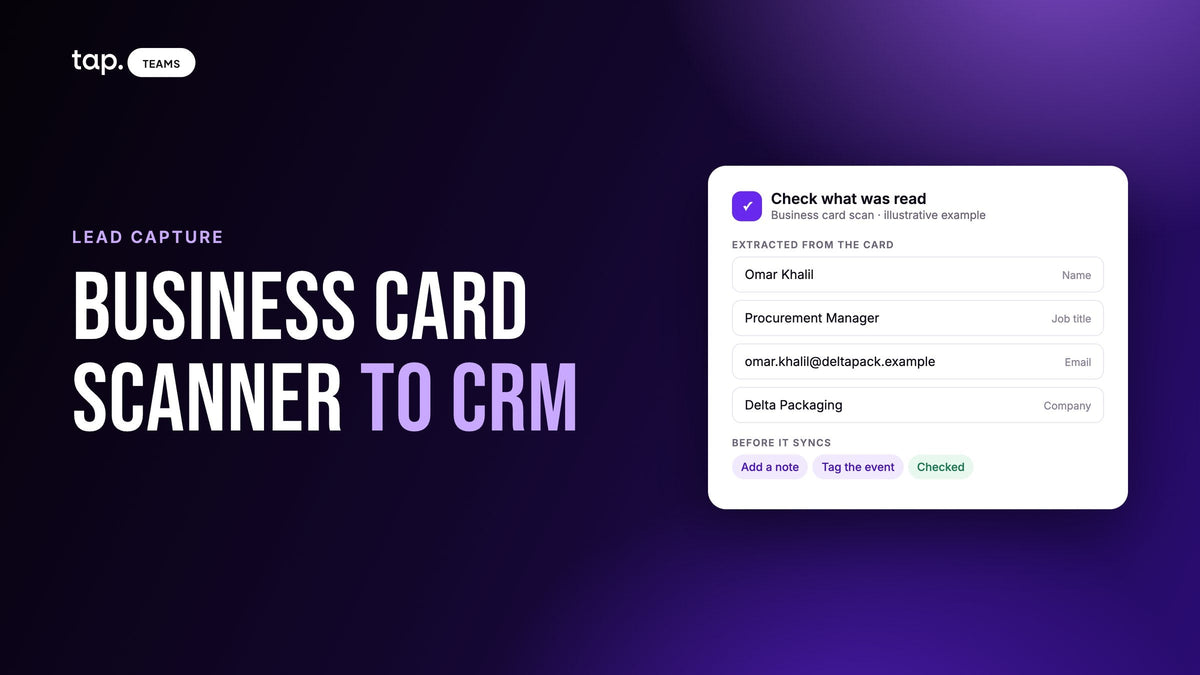
A business card scanner photographs a card, reads the text with OCR, and creates a CRM record from the name, title, company, email and phone numbers it finds. What it can't send is the conversation: why you met, what they need, who decides. Check every scan before you save it, because one misread character in an email loses the lead.
Most pages about scanning cards into a CRM stop at "the app reads the card and fills in the fields." This one follows the record after that point: which CRM object it becomes, who owns it, what happens when the same person is scanned twice, and which details never make it across. It's part of our guide to lead capture form design, because for anyone you meet in person, a form they fill in themselves usually beats a scan.
How a business card scanner gets a card into your CRM
Whatever app you use, the steps are roughly the same:
- You photograph the card, or upload a photo you took earlier.
- OCR (optical character recognition) turns the image into text.
- The app guesses which bit of text is which: this line looks like a name, that one has an @ so it's an email, this string of digits is probably a mobile number.
- You see the result and correct it. Good apps make this step hard to skip. Some skip it for you.
- The app creates a record, either directly in the CRM through a native integration, or in its own list that you export to a spreadsheet and import later.
Step five is where the options split. A scanner built into your CRM, or one with a native integration, creates the record straight away. A standalone scanner that only exports CSV files puts a person back in the loop: someone has to download the file, match the columns and run the import, and that someone is usually a rep on a Friday afternoon, a week after the event. If you're choosing a scanner, direct sync matters more than a small difference in reading accuracy.
Steps three and four are where the data quality is decided, and they get the least attention.
What a business card scanner actually sends to the CRM
A card carries contact details and not much else. So a scan gives you a record with the contact fields filled and everything that would help you sell left empty.

Here's what each part of a card usually becomes, and what tends to go wrong on the way:
| On the card | In the CRM | What tends to go wrong |
|---|---|---|
| Full name | First name and last name | Split in the wrong place, or the two parts swapped |
| Job title | Title | Abbreviations kept as printed, or a department read as the title |
| Company | Company or account name | A logo the OCR can't read, or a brand name instead of the legal entity |
| One character misread, which makes the address useless | ||
| Phone numbers | Mobile, work phone, fax | The wrong number in the mobile field, a missing country code |
| Address | Street, city, country | Lines merged, or the country left out because it wasn't printed |
| Website, social handles | Website field, if mapped | Often dropped because nothing maps to them |
Then there's what never arrives, because it was never on the card:
- Why you talked. A visitor who asked for a quote and a visitor who wanted a free pen produce identical records.
- What they told you: the deadline, the supplier they're unhappy with, the colleague who signs off.
- Their role in a purchase. A title says what someone is called, not whether they decide.
- Where you met. Unless someone tags the record, a lead from a trade show looks the same as one from a dinner.
- Whether they agreed to hear from you. A card handed over in conversation is not consent to a marketing list, and in some countries the difference matters legally.
None of this is a fault in the scanner. A card is a small piece of paper designed to be read by a person. But it does mean a scanned record isn't finished when the scan is.
Where OCR goes wrong on business cards
Reading accuracy has improved a lot, and on a plain, well-lit card most apps get most fields right. The trouble is that "most fields" isn't good enough when the wrong one is the email. These are the errors worth knowing:
Emails and websites
Letters that look alike in small type get swapped: rn and m, l and 1, O and 0, a dot that disappears between first and last name. The email still looks plausible, so nobody notices until the follow-up bounces. By then the card is in a drawer, or the bin.
Phone numbers
Cards often carry two or three numbers: office, mobile, sometimes a switchboard or fax. The scanner has to guess which is which from labels that might be "M", "Mob", "Cell", a small phone icon, or nothing at all. Country codes are often left off the card because the owner never needed them at home. A number saved without one may not dial from a colleague's phone in another country.
Names
Name order varies by culture, and many cards put the family name first or in capitals. Compound names, double surnames and honorifics like Dr or Eng. get split in odd places. If your CRM requires a last name and the scanner puts everything into the first name field, the record may fail to sync at all.
Design-heavy and bilingual cards
Text over a photo, vertical layouts, low-contrast foil and tiny grey type all read badly. So do cards with a different language on each side. In the Gulf and Egypt it's common to get English on the front and Arabic on the back, and you'll want to scan the side your CRM can use and check the name spelling against what the person told you.
Most failed scans come from the photo, though, not the card. Light matters more than a steady hand: an underlit card in a dim hall reads far worse than a slightly blurry one by a window. Fill the frame with the card and shoot it flat, straight on. Angled shots distort the text.
The review step: check a scan before you save it
Every decent scanner shows you what it read before it saves. This is the step people skip, because the line is moving and the next person is waiting. It's also the only point where fixing an error is cheap. You're holding the card, and often the person is still standing in front of you.

Check, in this order:
- The email, character by character against the card. If it's wrong, the lead can't be emailed, and enrichment tools may not find the right person either.
- The mobile number, and that it's in the mobile field with a country code.
- The name split. First name in first name, family name in last name.
- The company. The name people search for in your CRM, spelled the way your CRM already has it, if it's an existing account.
- The title, if your lead scoring or routing depends on it.
If the person is still there, ask them to glance at it. "Is this the right mobile?" takes five seconds and nobody minds. If you're scanning a pile of cards later, keep each card until its record is checked.
Lead or contact: what should a scanned card create?
This question decides where the record shows up in your CRM, and it's the one most scanner pages skip.
Someone who handed you a card at a stand is, in most sales processes, unqualified. You don't yet know whether they have a need, a budget or any say in buying. CRMs that separate leads from contacts expect that kind of person to start as a lead and become a contact once someone qualifies them. Salesforce and Zoho CRM work this way, with a separate Lead object. If Salesforce is yours, our guide to scanning business cards into Salesforce covers the required fields, validation rules and assignment rules that decide whether a scanned Lead saves and who owns it. Pipedrive keeps leads in a Leads Inbox, apart from the deals in your pipeline. HubSpot uses the contact as the starting point and tracks qualification through the lifecycle stage instead.
A scanner that drops every card in as a contact (and many do) fills your contact database with strangers. Your marketing lists grow, your account views fill with people nobody qualified, and reps stop trusting the data. A scanner that creates leads keeps them in the queue where qualification happens.
Whichever way your CRM works, two things are worth checking before an event. Find out which object the scanner writes to, and where in the CRM a rep should look for it. A rep who scans forty cards and then looks in the deals pipeline will decide nothing synced, when it's all sitting in the leads view.
Duplicates: when the same person gets scanned twice
At an event, duplicates are normal. Two reps talk to the same buyer. A rep scans a card, the buyer later fills in a form on your website, and the CRM already had them from last year's show.
Most CRMs and integrations match on email. If the scanned email already exists, the scan updates that record rather than creating a second one. That works well, with two catches.
First, a card with no email (or a misread one) can't match anything, so it creates a new record every time. A misread email is worse than a missing one: it creates a duplicate and leaves the real record untouched.
Second, updating is not the same as being careful. A good integration won't wipe an existing phone number just because the scan had no phone. It will usually replace a value that's different, though. If the scanner misread the company name, that misreading can overwrite the correct one the CRM already had. One more reason the review step matters.
If two reps met the same person, decide in advance whose lead it is. "Whoever scanned first" is a fine rule, as long as everyone knows it before the event and not after.
How to keep scanned cards from polluting your CRM
Duplicates are cheapest to stop before the record exists. Cleaning them up six months later is slower, and by then reps have logged calls against both copies. A few habits do most of the work:
- Capture an email every time. Matching runs on email in most CRMs and integrations, so a record without one can't be matched to anybody. If your capture form lets you make email required, do it.
- Ask for the work address. Someone captured with a personal email at one event and a work email at the next is two people as far as the CRM can tell.
- Fix a misread email before you save. A wrong address creates a new record and leaves the real one untouched.
- Store phone numbers with the country code. Some systems fall back to the phone number when there's no email, and a local format and an international one won't look alike.
- Check a spreadsheet of old cards against what you already have before importing it. Last year's pile usually overlaps with leads you already hold.
- When duplicates do get through, merge them with your CRM's own tools. Merging keeps the history of both records on one; deleting a copy throws half of it away.
People often ask which scanning tools eliminate duplicate contacts. Honestly, none does it alone. A good scanner matches on email and won't wipe good data with a blank. The rest depends on the email being right and on your team capturing the same person the same way.
Who owns a scanned record
Ownership is the other thing that breaks without an error. The rep who scanned the card expects to own the lead. Whether they do depends on how the scanner connects to the CRM.
Integrations usually assign an owner by matching the person who scanned to a CRM user, often by email address. When the match fails, the record still syncs, but it lands with the CRM's default owner, which may be an admin who never looks at it. The most common cause is mundane: a rep signs into the scanner with one email and into the CRM with another.
Your CRM's own assignment rules can also run after the record arrives and move it somewhere else. If owners look wrong after an event, check the login emails first and the assignment rules second.
Field mapping: where scanned data lands
Mapping decides which CRM field each piece of captured data goes into. The standard fields (name, email, company, phone) usually map on their own. The rest needs setting up, and mistakes here don't show an error. The data just doesn't arrive.
- A custom field has to exist in the CRM before anything can map to it. Create the property first, then map it.
- Match types. Free text pushed into a dropdown field is rejected, and depending on the CRM the whole record can be rejected with it.
- Required fields fail everything. If your CRM requires a field that nothing maps to (a company on a lead, a last name, a region), every synced record fails until you map something to it or make it optional.
- Name splitting is a mapping choice too. Most integrations split a full name at the first space, which handles some names badly.
- Changing a mapping usually affects new records only. Records that already synced keep the old values.
The fix for nearly all of this is the same: before the event, scan one real card, open the record in the CRM, and check every field. The field mapping guide in our docs has a checklist for exactly this.
Add the context the card can't carry
A scanned record with a note on it is worth far more than one without. The note doesn't need to be long. "Asked about rollout for three sites before the summer. Colleague Hana in IT needs to see the integration." That's enough to write a follow-up that sounds like you remember them.
Write it straight after the conversation, before the next one starts. A note written that evening is thinner, and one written next week is mostly guesswork.
While you're there, add the two things that make a lead sortable later: a tag for the event, agreed with the team beforehand so everyone uses the same one, and their role in the purchase if you found out. A lead scoring model can't tell a decision maker from a student unless someone says so. Then make sure the note syncs to the CRM along with the contact details, so whoever follows up sees it.
Clearing a backlog of business cards
If you already have a stack of cards from the last event, a few habits make the job shorter:
- Photograph them in batches and upload from your gallery, if your scanner allows it. Good light, one card per photo, flat on a table.
- Do it within a day or two. You'll still remember enough about each person to add a line of context, and the follow-up won't be stale.
- Tag the whole batch with the event before you start, so it doesn't get mixed in with everything else.
- Review each scan against its card. Batch mode makes it tempting to save all and fix later. Later rarely comes.
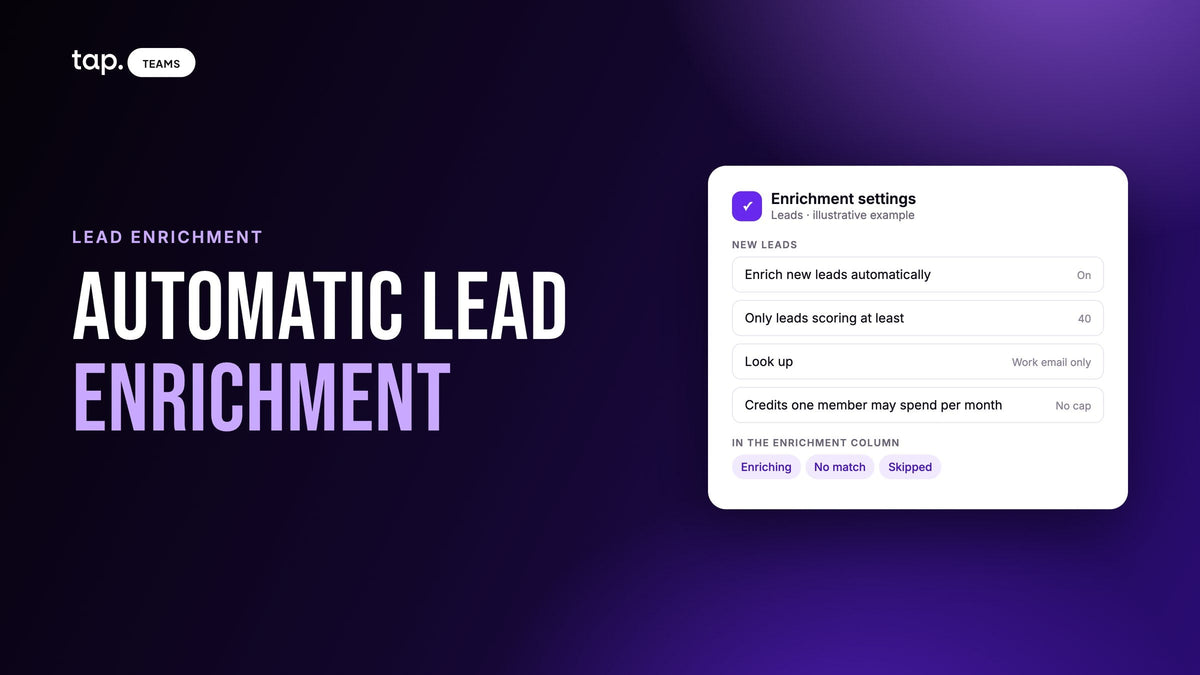
- For cards with gaps (a mobile but no email, a generic info@ address), lead enrichment can fill in a work email or title rather than leaving the record half empty.
Manual entry is slow. Is there a better way?
Typing cards into a CRM by hand is slow, error-prone and usually done late, which is why people search for a scanner in the first place. A scanner fixes the typing. It doesn't fix the errors entirely, and it doesn't fix "late" if the cards sit in a jacket pocket until Monday.
For anyone you meet in person, there's a better option than either: let them type their own details. You share your profile by QR code or a tap, a short form opens in their phone's browser, and they fill it in while you're still talking. The details come from the person, so there's nothing to misread. You get the questions you chose, not just what fits on a card. And the lead exists before they walk away. That's the idea behind lead capture built for in-person selling, and it's the reason a digital business card with CRM integration is worth having even if you still carry paper ones.

Scanning still has its place. Some people hand you a card and leave before you can share anything. Some don't want to take out their phone, and that's their call. At a busy trade show the badge may hold better data than the card. (If badges are your main source, our guide to event lead retrieval covers the options.) A simple rule works well: when someone offers you a card, take it, then offer your profile and let them fill in the form. You end up with a clean lead and the card as a backup.
What to look for in a business card scanner that syncs to your CRM
If you're choosing a scanner, or checking whether the one you have is set up properly, these are the questions that matter more than the accuracy figure on the website:
- Does it sync directly to your CRM, or only export files?
- Does it show you what it read before saving, and make that easy on a phone?
- Which CRM object does it create, and can you see where?
- How does it handle a record that already exists, and does a blank on the card leave existing data alone?
- How does it set the owner, and what happens when there's no match?
- Can you map custom fields, and does it tell you when a sync fails?
- Can a rep add a note and an event tag on the same screen?
- Does it work on a weak connection and sync later?
- Can your team also capture leads without a card, through a form the other person fills in?
How Tap handles this
The Tap app's scanner reads business cards, QR codes and event badges, and you can upload a photo from your gallery instead of using the camera. For a card, it shows you what it read before saving, so you can check the email against the card. A saved scan behaves like any other lead: it gets a quality score (missing fields cost points), syncs to your CRM, and takes notes, meetings and follow-ups. Right after saving, the app asks for the lead's relationship and buying role, and you can skip both and answer later.
Tap treats scanning as the fallback. The default is sharing your profile: the other person opens it in their browser, with nothing to install, and fills in your capture form, so the lead arrives typed by them and with your own questions.
On the CRM side, Tap connects natively to Salesforce, HubSpot, Zoho, Pipedrive, Veeva Vault and Odoo, plus Zapier for other tools. Salesforce and Zoho get a Lead, HubSpot gets a Contact, Pipedrive gets a Person plus a Lead in the Leads Inbox, Veeva Vault gets a Contact record, and in Odoo you choose. The owner is the CRM user whose email matches the rep who captured the lead, or your default owner if there's no match. When a lead matches an existing record, blank values don't erase what's there. Matching runs on email, so two captures of the same person with different addresses stay two records until you merge them in your CRM (the integration troubleshooting guide covers this). If you bring an old list in by importing a file, Tap counts the duplicates first, whether they're repeated in the file or already one of your leads, and Skip duplicates leaves them out. Fields you haven't mapped stay on the lead in Tap and in exports, and notes go to the CRM along with the lead when Sync Notes is on, which it is by default.
There's more on the lead capture page, or you can book a demo and try it with a card from your own desk.
Related reading
- CRM field mapping: how to map custom fields without breaking sync
- Business card scanner apps for sales teams compared: snapADDY, Covve, HubSpot and Tap
- Business card scanner for Salesforce: how scanned cards become Leads
- Hot, warm and cold leads: what each means and what to do
- Trade show lead follow-up: which leads to call first, and when
FAQ
Can you scan business cards directly into a CRM?
Yes. Many CRMs have a scanner in their mobile app, and standalone scanners connect to the common CRMs through native integrations or tools like Zapier. Check that the scanner syncs directly instead of only exporting files, and find out which CRM object it creates, a lead or a contact, before you rely on it at an event. For a vendor-by-vendor look at snapADDY, Covve, HubSpot's scanner and Tap, see business card scanner apps compared.
How accurate are business card scanners?
On a plain, well-lit card, modern scanners read most fields correctly. Accuracy drops on design-heavy cards, low-contrast print, unusual layouts and bilingual cards, and the most damaging errors are small ones, like a single wrong character in an email. Always review the extracted details against the card before saving.
Manual business card entry into a CRM takes so long. Is there a better way?
A scanner removes most of the typing, as long as you review each scan before saving. For people you meet face to face, it's usually better to share your digital profile and let them fill in a short form on their own phone. Their details arrive typed by them, with the fields you need, and you keep their card as a backup.
Should a scanned business card be a lead or a contact?
In most sales processes, a lead. Someone you met at an event is unqualified until you know they have a need and a role in buying. CRMs with a separate Lead object, such as Salesforce and Zoho, expect new people to start there. HubSpot starts everyone as a contact and uses the lifecycle stage to show qualification.
What happens if the same person is scanned twice?
Most CRMs and integrations match on email, so a second scan with the same email updates the existing record. A card with no email, or a misread one, creates a duplicate. Updates can also overwrite correct data with a misread value, which is why checking the scan before saving matters. To keep duplicates down, capture an email every time, ask for the work address, and merge any that slip through with your CRM's own tools.

Leave a comment
This site is protected by hCaptcha and the hCaptcha Privacy Policy and Terms of Service apply.