
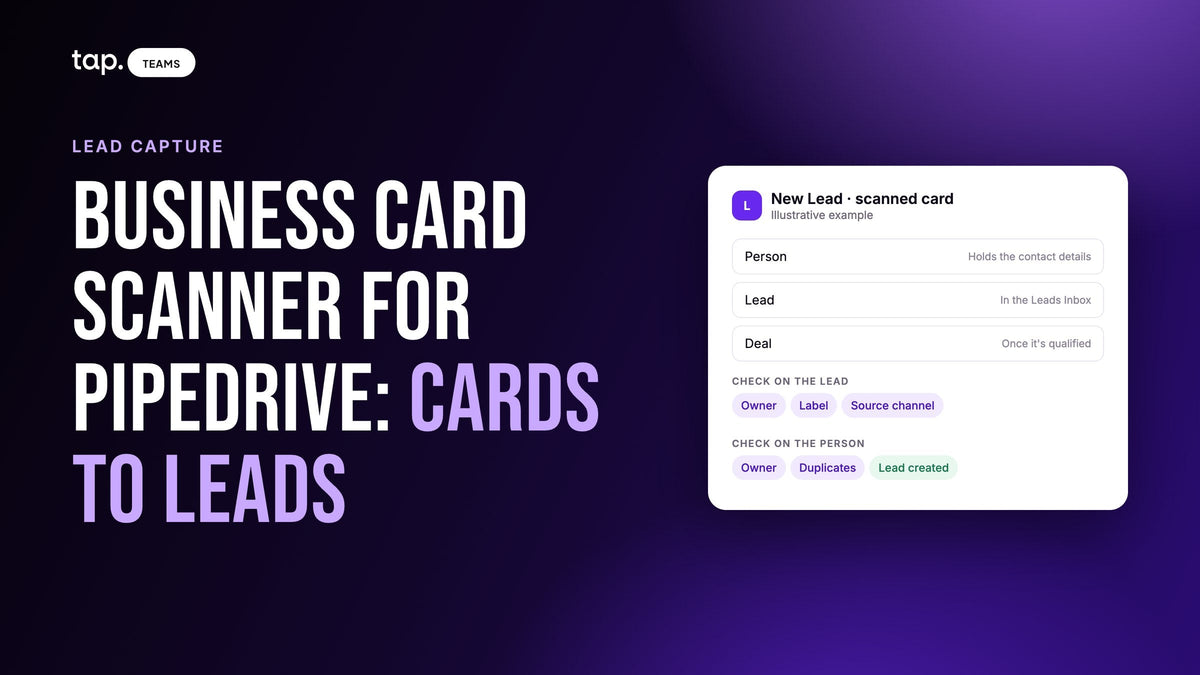
Pipedrive has a business card scanner in its mobile app: tap add, choose Contact scanner, review, save. That adds a contact. Someone you've just met usually needs a Lead in the Leads Inbox too, with the right owner and an event label, and those are the parts that go missing. Test one real card before the show.
This guide covers the Pipedrive side only. For what any scanner can and can't read off a card, see business card scanner to CRM: what actually arrives. If you're still choosing an app, the business card scanner apps comparison goes through the options one by one.
Pipedrive's own scanner, and what it leaves to you
Pipedrive's help article describes it like this. In the mobile app, tap the main add button and choose Contact scanner, or start from the person list. The scanner reads the card, including several phone numbers or email addresses, and shows you the result to review. You can rescan, save the card image to the contact's timeline, and tap Save to add the contact to your list. It scans one contact at a time and needs Android 11 or iOS 18 or later.
Notice what that article doesn't mention: leads. It describes a contact, and in Pipedrive a contact can exist without any lead or deal. So a rep who scans twenty cards and then opens the Leads Inbox may reasonably think nothing worked. To get them there, someone adds a Lead by hand and links it to the saved contact. For a rep collecting a few cards a week, I think that's fine. After a three-day show, it's an evening of clicking that tends not to happen.
Apps in the Pipedrive Marketplace and automation templates vary here. Going by their own listings, some let you choose Persons or Leads at setup, and others create a Person and nothing else. Ask which record yours creates, because that tells your reps where to look.
Person, Lead or Deal: what a scanned card should create
Pipedrive splits what most people call "a lead" into separate things. A Person is the lasting record of a human, with their email and phone. A Lead is one early opportunity. It must be linked to a person or an organization, holds no contact details of its own, and waits in the Leads Inbox. A Deal is a qualified opportunity moving through pipeline stages, and it can carry products, which a Lead can't.

For a card from a booth, I'd want a Person plus a Lead. You don't yet know whether this person has a need, so a Deal in a pipeline stage is a guess, and forty guesses make the pipeline hard to read. When someone qualifies the Lead, Convert to deal asks for the pipeline, visibility and value. The linked person, organization, notes and files carry over, and the Lead leaves the Inbox. If you sort leads with labels, an option under Company Settings can copy them across on conversion. It only applies to future conversions, so turn it on first.
Required fields and custom fields
Pipedrive asks for very little. A Person needs a name, and a Lead needs its link to a person or organization. An admin can set up required fields for deals, people and organizations, but don't lean on them as a safety net for scanned cards. The article says they aren't supported on the leads detail view, and that they won't stop deals from progressing when fields change through an import, API, automation or third-party integration. A Lead can arrive with a field empty that your manager assumed was mandatory.
Custom fields come in two families, and it matters which one you use. Details about the human go on the Person. Details about this opportunity go on the Lead, and leads use the same fields as deals, so a field created for deals shows up on leads with the same name and properties.
Job title is the one to check first. Pipedrive's data fields article says it doesn't exist by default and appears on contact people once contact sync is set up. Without it, a scanner may have nowhere to put the title unless you add a custom Person field. For mapping itself, our guide to CRM custom field mapping covers types and the usual ways sync breaks.
Owners: the Person and the Lead each have one
This one trips people up. Owner is a separate field on each record, so a scanner can set the rep as owner of the Person and say nothing about the Lead. Pipedrive's API docs say that if a new lead has no owner set, the user making the request becomes the owner. Depending on the integration, that can be whoever connected it, perhaps an admin who rarely opens the Inbox.
So your test has two checks: who owns the Person, and who owns the Lead. If they differ, automatic assignment may help, where your plan includes it. A rule on the Lead added event can assign to a user, a team in round robin, the owner of the linked organization, or the owner of the linked person, and leads a rule couldn't place go to a Not assigned tab. The article doesn't say whether rules fire for leads added by an integration, so try it with a real card. If a lead is missing altogether, check its Visible to setting as well.
Duplicates and merging
Pipedrive's Merge Duplicates tool flags two people when they share a name and at least one of phone, email or organization. Scanners and integrations often match on email alone. Those rules don't always agree: the same email under two spellings of a name doesn't meet Pipedrive's test, and a card with no email gives an email match nothing to work with.
Test it by scanning a card for someone already in your account, then look for three things. Did you get a second Person? Did the existing Person change? Did a new Lead appear? A scanner that updates an existing Person might not open a Lead, so last year's contact won't show up in this year's Inbox. Also remember that contact details are shared: changing a Person updates what every linked lead and deal shows, so a misread company name travels.
Clean up with care. Merges can't be undone, and the primary record wins where values conflict, which is why Pipedrive suggests leaving them to admins. Two leads can be merged from the "..." menu on the lead.
Tying scanned cards to the event
You have several places to record where you met someone, and they behave differently. Pipedrive's lead source article explains the source fields.
| Field | What it is | Use for an event |
|---|---|---|
| Source origin | Set by Pipedrive: how the record arrived, such as Manually created, Import or API. Not editable | Tells you it came through an integration, never which show |
| Source channel | A list an admin defines. Users pick from it | A broad value like "Trade shows" |
| Source channel ID | A free value any user can edit, singly or in bulk | The show itself. Agree the exact spelling first |
| Lead label | Colored tag. A lead can have several, and you can filter by them | Quick sorting in the Inbox. Lead labels can't be imported |
| Contact label | Describes the long-term relationship with a person or organization | Skip it. It stays on the Person after the event is over |
| Custom Person field | Your own field, filled by whatever you map to it | Works if your scanner can write to it, though one person may attend many shows |
I'd use source channel plus source channel ID, because lead conversion reports can be viewed by source channel, and that's how you find out whether the show was worth it. Scanners may not fill these fields for you. Pipedrive's API accepts a channel on a new lead, but ask whether your app sends one. If it doesn't, bulk edit in the leads list covers labels, owner, source channel and source channel ID, so one person can fix a day's scans in a few minutes.
What to set up before the show
- Decide what a scanned card creates, and tell the reps where to look for it.
- Add the source channel value and agree the spelling of the show's name.
- Create any custom fields you'll need, job title included if it's missing.
- Check that each rep's login email matches their Pipedrive user, and that the user is active.
- Name the person who opens the Leads Inbox each day of the show.
- Scan one real card, then a card for someone already in Pipedrive, and check both owners and every field.
What to check after
Do this on the first evening, while you still have the cards.
- Count scans on the phone against new Persons and new Leads. They can differ, and the gap is your to-do list.
- If a Lead is missing, search Contacts by the email on the card.
- Read three or four records against the card, email first.
- Sort the Inbox by owner and look for anything sitting under an admin.
- Run the merge check on anyone you suspect came through twice, before a rep converts them.
- Add a line of context to the leads that matter, while you remember why you talked.

When the cards don't come from a show
Most advice on this topic assumes a booth and a badge. Plenty of cards arrive differently: a rep leaves a client's office with two cards from people who joined the meeting, and scans them in the parking lot. Nobody's going to run a batch review or a bulk edit between visits.
Scan before you start the car, while you can still ask about a smudged number or remember the person who handed it over. Use one standing source channel value for field visits, so these leads aren't mixed up with shows. And give the Inbox an owner all year round. Decide weekly: convert it, or archive it so it leaves the active list and stays in the account.
If the person is standing in front of you with a phone, there's a better option than any scanner: let them type their own details into a form. That's what lead capture built for in-person selling does, and the card becomes your backup.
How Tap handles this
In Pipedrive, a lead captured in Tap becomes a Person and a Lead pointing at it, so it lands in the Leads Inbox and doesn't appear as a Deal until you convert it. Connect it from Integrations, sign in to Pipedrive and approve access to persons, leads and activities. A meeting summary and its action items arrive as activity on the person. The Pipedrive integration docs have the steps.
Create custom fields in Pipedrive first, under Data fields, Person, then map them in Tap by their readable label instead of Pipedrive's internal key. A capture whose email already exists updates that Person, and blank values don't erase what's there. A capture with no email always creates a new record. Tap sets the Person's owner by matching the capturing member's Tap email to a Pipedrive user's email. With no match, the record still syncs to your CRM's default owner. Event tags reach Pipedrive if you map a tag field, and fields you haven't mapped stay on the lead in Tap.
The Tap scanner reads business cards, QR codes and event badges and shows what it read before saving. Tap treats it as the fallback, though. The default is sharing a profile that the visitor opens in their browser, where they fill in your form. Two checks for your list: CRM access is off by default for each department, and a rep's own CRM connection overrides the company's. Sync one real test lead, then check who owns the Person and who owns the Lead.
See the lead capture page, or book a free 30-minute demo.
Related reading
- Lead capture form design: how to build one people finish
- Business card scanner to CRM: what actually arrives
- Business card scanner for Salesforce: how scanned cards become leads
FAQ
Does Pipedrive have a business card scanner?
Yes. It's in the Pipedrive mobile app: tap the main add button and choose Contact scanner, or start from the person list. You review what it read and save it as a contact, one card at a time. Pipedrive's help article doesn't mention creating a Lead, so check Contacts if you can't see the card in the Leads Inbox.
What is the most reliable way to transfer scanned business cards from events into a CRM?
Use a scanner that writes straight to your CRM, so nobody has to export and import a file. Have reps check each scan against the card before saving, and test one real card before the event. On the first evening, count scans against new records while the cards are still in your hand.
Why can't I find my scanned card in the Pipedrive Leads Inbox?
The scanner may have created only a Person, which appears in Contacts and not in the Inbox. It may have updated a Person you already had without opening a new Lead. Or the Lead exists under another owner, so search by the email on the card.
Should a scanned card be a Person, a Lead or a Deal in Pipedrive?
A Person plus a Lead, in most sales processes. The Person keeps the contact details, and the Lead waits in the Inbox until someone qualifies it. Convert it to a Deal at that point, so your pipeline only holds real opportunities.
Is a CRM with a built-in business card scanner enough?
For a rep collecting a few cards a week, often yes. Check which record it creates, whether it handles an existing contact well, and how you'll mark the event. A team scanning hundreds of cards at a show usually needs field mapping, owners and event tracking handled for them.

Leave a comment
This site is protected by hCaptcha and the hCaptcha Privacy Policy and Terms of Service apply.